In this tutorial, you’ll deploy a pre-built SDXL Turbo worker from the Runpod Hub and integrate it into a web application. You’ll build a simple frontend that sends prompts to your endpoint and displays the generated images.
By the end, you’ll know how to deploy Serverless endpoints from the Hub and integrate them into your applications using standard HTTP requests.
What you’ll learn
In this tutorial, you’ll learn how to:
- Deploy a pre-built AI worker from the Runpod Hub.
- Build a web application that generates images from text prompts.
Requirements
Step 1: Deploy an endpoint from the Hub
The Runpod Hub provides pre-built workers you can deploy with a few clicks. For this tutorial, you’ll deploy the SDXL Turbo worker, which generates images from text prompts.
- Navigate to the Runpod Hub in the console.
- Search for “SDXL-turbo” or browse the image generation category.
- Select the SDXL-turbo worker to view its details and hardware requirements.
- Click Deploy in the top-right corner of the page.
- Click Create Endpoint.
Your endpoint will be ready within a few minutes. You can monitor the deployment status on your Serverless endpoints page.
Step 2: Find your endpoint ID and API key
Now that your endpoint is deployed, you’ll need your endpoint ID and API key to make requests.
Find your endpoint ID
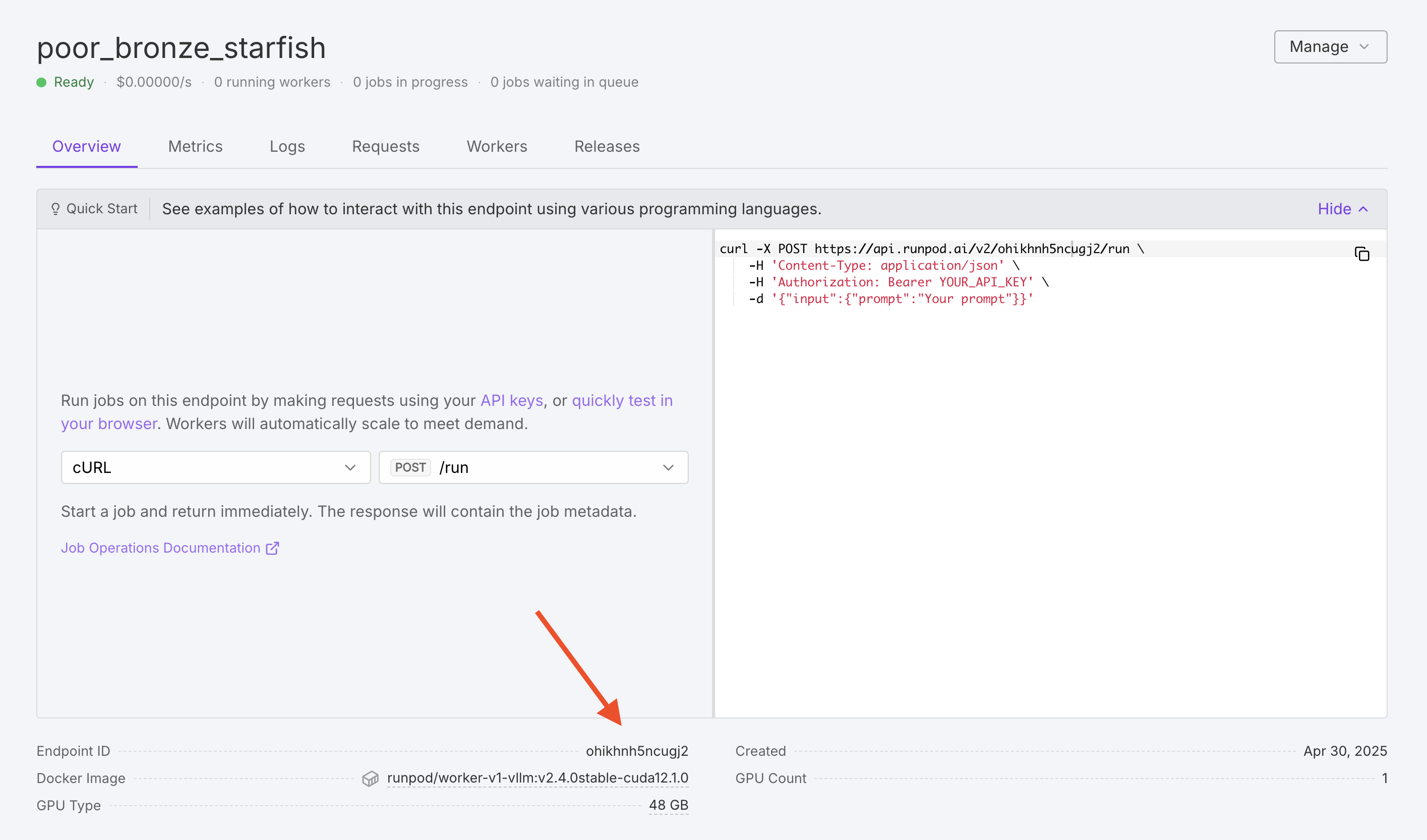
- Go to your Serverless endpoints page.
- Click on your SDXL Turbo endpoint.
- Copy the Endpoint ID shown at the top of the page.
Find your API key
- Navigate to Settings > API Keys in the console, or go directly to the API Keys page.
- Copy an existing API key, or create a new one with read and write permissions.
Store your API key securely. Never commit it to version control or expose it in client-side code that’s publicly accessible.
Step 3: Send a test request
Test your endpoint with a simple API request before integrating it into an application. The endpoint accepts a JSON payload with an input object containing your prompt.
curl -X POST "https://api.runpod.ai/v2/${YOUR_ENDPOINT_ID}/runsync" \
     -H "accept: application/json" \
     -H "content-type: application/json" \
     -H "authorization: Bearer ${YOUR_API_KEY}" \
     -d '{
        "input": {
            "prompt": "A futuristic city skyline at sunset"
        }
     }'
import requests

endpoint_id = "YOUR_ENDPOINT_ID"
api_key = "YOUR_API_KEY"

response = requests.post(
    f"https://api.runpod.ai/v2/{endpoint_id}/runsync",
    headers={
        "accept": "application/json",
        "content-type": "application/json",
        "authorization": f"Bearer {api_key}",
    },
    json={
        "input": {
            "prompt": "A futuristic city skyline at sunset",
        }
    },
)

print(response.json())
{
  "delayTime": 168,
  "executionTime": 2126,
  "id": "sync-fa542d19-92b2-47d0-8e58-c01878f0365d-u1",
  "output": {
    "generation_time": 0.72,
    "images": [
      {
        "image": "BASE_64_ENCODED_IMAGE"
      }
    ]
  },
  "status": "COMPLETED"
}
| Placeholder | Description |
|---|
YOUR_ENDPOINT_ID | Your endpoint ID from step 2. |
YOUR_API_KEY | Your Runpod API key. |
output.images[0].image. For more information about request parameters and response formats, see Send requests.
SDXL Turbo uses adversarial diffusion distillation to generate images in just a few steps. The worker is pre-configured with optimal settings, so you only need to provide the prompt parameter, but you can also provide other parameters to control the generation process.
| Parameter | Type | Required | Default | Description |
|---|
prompt | string | Yes | - | The prompt to generate an image from. |
negative_prompt | string | No | - | The negative prompt to exclude from the image. |
width | integer | No | 1024 | The width of the image in pixels. |
height | integer | No | 1024 | The height of the image in pixels. |
num_inference_steps | integer | No | 25 | The number of denoising steps. |
Step 4: Integrate with a web application
Now that you’ve confirmed your endpoint is working, you can integrate it into a web application. This example creates a simple image generator with an input field for prompts and a button to generate images. While this tutorial uses JavaScript, you can make requests to your endpoint using any programming language or framework.
Create two files in the same directory:
The HTML file sets up a user interface with an input field for prompts and a button to generate images. Clicking the button calls the generateImage function in script.js.<!DOCTYPE html>
<html lang="en">
<head>
<meta charset="UTF-8">
<meta name="viewport" content="width=device-width, initial-scale=1.0">
<title>Runpod AI Image Generator</title>
<style>
body {
font-family: Arial, sans-serif;
max-width: 800px;
margin: 0 auto;
padding: 20px;
text-align: center;
}
#promptInput {
width: 100%;
max-width: 500px;
padding: 10px;
font-size: 16px;
margin-bottom: 10px;
}
button {
padding: 10px 20px;
font-size: 16px;
cursor: pointer;
}
#imageResult {
margin-top: 20px;
}
#imageResult img {
max-width: 100%;
height: auto;
}
#loading {
display: none;
margin-top: 20px;
}
</style>
</head>
<body>
<h1>AI Image Generator</h1>
<p>Enter a prompt to generate an image using SDXL Turbo.</p>
<input type="text" id="promptInput" placeholder="A futuristic city skyline at sunset" />
<br>
<button onclick="generateImage()">Generate Image</button>
<div id="loading">Generating image...</div>
<div id="imageResult"></div>
<script src="script.js"></script>
</body>
</html>
The JavaScript file handles API communication. The generateImage function reads the user’s prompt, sends a POST request to your Runpod endpoint, and displays the generated image. The endpoint returns a base64-encoded PNG image in the output.images array, which is then converted to a displayable format.// Replace these with your actual values
const ENDPOINT_ID = "YOUR_ENDPOINT_ID";
const API_KEY = "YOUR_API_KEY";
async function generateImage() {
const prompt = document.getElementById("promptInput").value;
if (!prompt) {
alert("Please enter a prompt!");
return;
}
// Show loading indicator
document.getElementById("loading").style.display = "block";
document.getElementById("imageResult").innerHTML = "";
const options = {
method: "POST",
headers: {
"accept": "application/json",
"content-type": "application/json",
"authorization": `Bearer ${API_KEY}`,
},
body: JSON.stringify({
input: {
prompt: prompt,
},
}),
};
try {
const response = await fetch(
`https://api.runpod.ai/v2/${ENDPOINT_ID}/runsync`,
options
);
const data = await response.json();
// Hide loading indicator
document.getElementById("loading").style.display = "none";
if (data && data.output && data.output.images && data.output.images.length > 0) {
const imageBase64 = data.output.images[0].image;
const imageUrl = `data:image/png;base64,${imageBase64}`;
document.getElementById("imageResult").innerHTML =
`<img src="${imageUrl}" alt="Generated Image" />`;
} else if (data && data.error) {
alert(`Error: ${data.error}`);
} else {
alert("Failed to generate image. Check the console for details.");
console.error("Response:", data);
}
} catch (error) {
document.getElementById("loading").style.display = "none";
console.error("Error:", error);
alert("Error generating image. Check the console for details.");
}
}
- Replace
YOUR_ENDPOINT_ID with your endpoint ID from step 2.
- Replace
YOUR_API_KEY with your Runpod API key.
This example includes the API key directly in client-side code for simplicity. In production, you should make API calls from a backend server to keep your API key secure.
Step 5: Run your application
You can run the application using a local server or by opening the HTML file directly in a browser.
Python server
Open directly
Run the following command in the directory containing your files:python -m http.server 8000
http://localhost:8000 in your browser.
- Navigate to the folder containing
index.html.
- Double-click the file to open it in your default browser, or right-click and select Open with to choose a specific browser.
The first request may take longer (30-60 seconds) due to cold start as the endpoint loads the model into GPU memory. Subsequent requests complete in just a few seconds.
Next steps
Now that you’ve integrated a Serverless endpoint into a web application, you can: